Preview pages on the latest phones and foldables, review Swagger and OpenAPI changes endpoint by endpoint before you import them, and send images to the AI Agent. This release also fixes how Dynamic Links open on iOS, in in-app browsers, and in social apps. In total, it includes 12 features and improvements and 26 bug fixes.
Features and improvements
Canvas
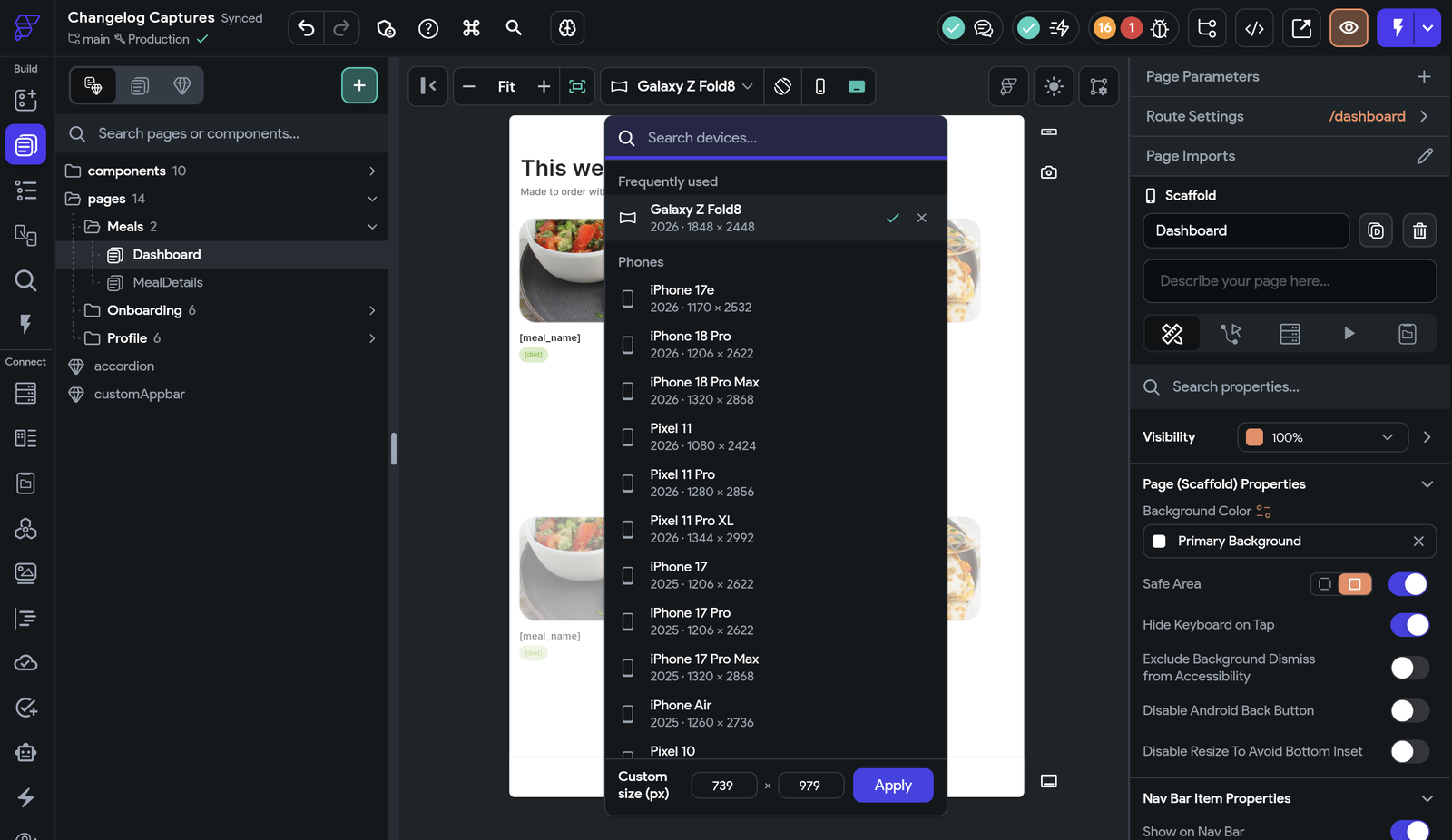
Device previews: Preview pages on the latest iPhones, Pixels, and Galaxy foldables, plus the iPhone Duo, with accurate frames, system bars, and fold postures. Choose a device from a searchable device menu.
Pick the latest phones and foldables from the device menu.
API calls
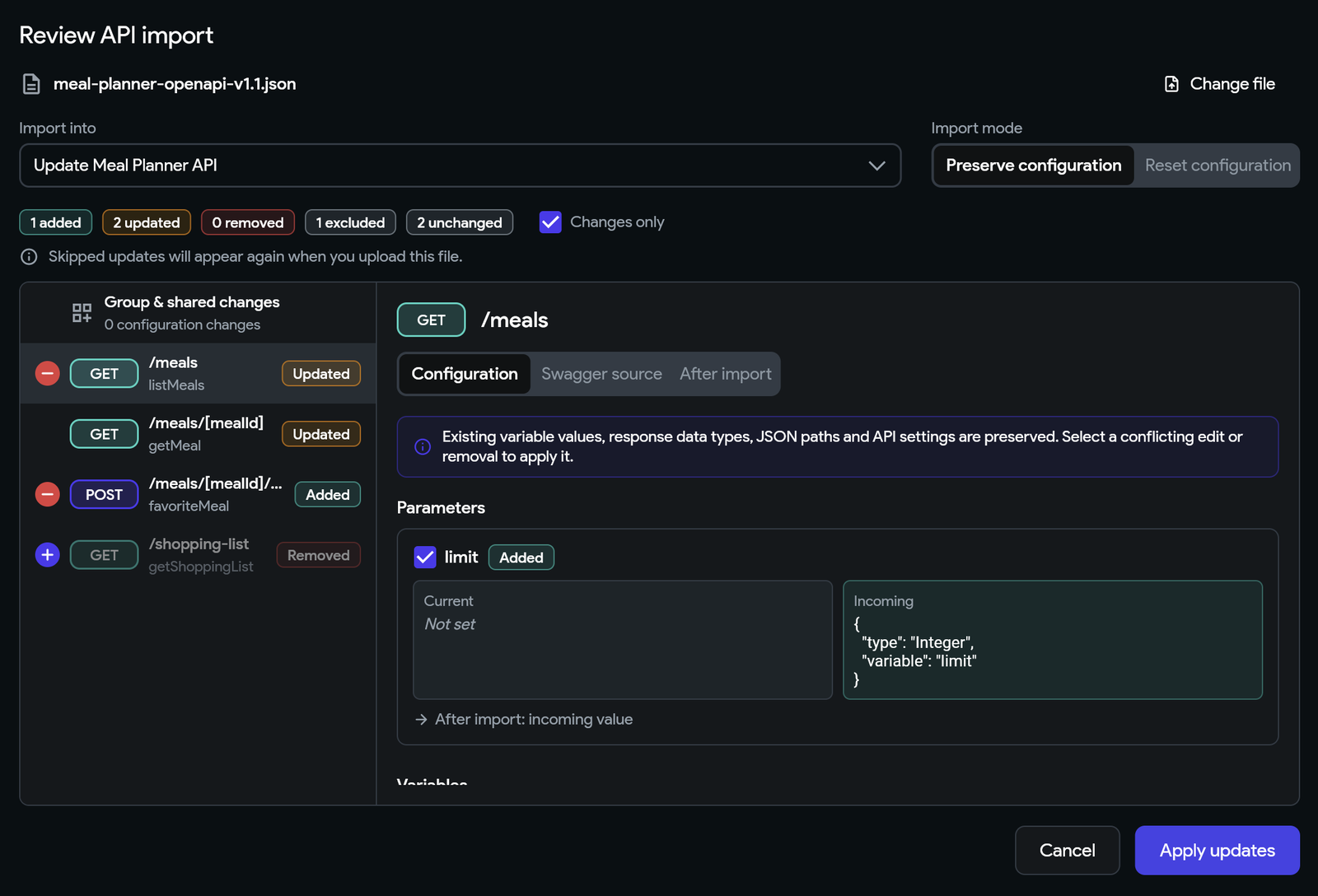
Swagger and OpenAPI imports: Drag Swagger or OpenAPI files into the redesigned upload dialog, and review the changes for each endpoint before you import them. Updates keep your variables, response mappings, and settings.
Safer imports: Imports warn you about missing references and incompatible parameter types, and they don't remove an existing API when its definition can't be imported. Large files load faster for review, and you can apply updates that you skipped on a later import.
Review the changes to each endpoint before you apply an import.
AI Agent
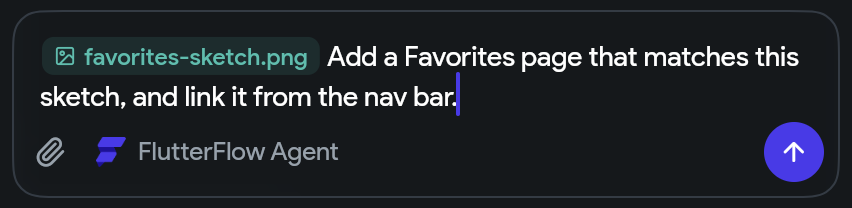
Image attachments: Paste, drop, or attach images in the AI Agent panel to send them to the agent with your message.
Panel docking: Dock the AI Agent panel on the left or right side of the editor. Test Mode makes room beside it, and the support chat moves next to the panel instead of disappearing.
Grouped steps: The AI Agent panel groups an agent's steps by the file or screen that they affect, so a long turn reads as a few rows. Project changes still appear on their own.
Media widgets: Agents that build apps through the FlutterFlow AI SDK can add Circle Image, Audio Player, YouTube Player, and Media Display widgets.
Attach an image to your message to the agent.
Editor and data
Enum folders: Organize Enums into folders on the Data Schema page, which also has other layout improvements.
Replace Usages picker: The Replace Usages picker in Search has a clearer layout. The header handles long field names, and the list highlights the row that you move to with the arrow keys.
Keyboard focus: Components with keyboard shortcuts can skip taking focus on page load, which removes an extra invisible Tab stop in front of their dropdowns, buttons, and text fields.
Desktop app and Test Mode
Open links in the desktop app: Open any FlutterFlow link in the desktop app, from a project page or settings tab to a dashboard view. To have the browser hand project links to the desktop app automatically, turn on the option in My Account.
Pinned projects in Test Mode: Projects pinned to a stable FlutterFlow version always run in the new Test Mode and don't show the upcoming Flutter upgrade notice, which applies only to the latest version.
Bug fixes
Dynamic Links
Opening your app on iOS: Dynamic Links open your app on iOS for projects without Firebase, and in apps whose custom Runner.entitlements code also declares associated domains. To pick up the fix for projects without Firebase, rebuild and resubmit your iOS app.
In-app browsers and social apps: On iPhone, links opened inside Instagram, Facebook, and other in-app browsers show an Open in app button that goes to the linked page. To turn this on for an existing app, click Update in Dynamic Links setup. Links tapped in Pinterest open your app, its store page, or your web app, and links shared on Snapchat, Bluesky, and Mastodon show the link's own preview card.
Landing on the linked page: An app opened from a Dynamic Link stays on the linked page instead of being moved on by its first page's On Page Load actions. In Supabase apps, tapping the same link a second time opens its page.
Generate Current Page Link: The action works inside page and component Action Blocks, from buttons in bottom sheets and dialogs, and in apps whose users share a lot. When it can't create a link, it shows a message and stops the actions after it, so Share no longer opens an empty share sheet. Pages with more than one of these actions are no longer flagged as not properly set.
Builds: App Store deploys sign apps that use Dynamic Links when the App ID doesn't have Associated Domains turned on. macOS builds succeed with Dynamic Links turned on, and links open in release builds signed with your Apple Team ID. A blank or leftover Android fingerprint no longer blocks builds.
Reliability: Links opened in your app retry when the network or link service briefly fails, and opens that still fail are counted in link analytics. A sudden spike of clicks or opens is no longer rate limited long before it reaches your link limits.
Settings updates: Changes to an app's Dynamic Links settings, such as a new SHA-256 fingerprint or Team ID, reach your links automatically, including changes made by the AI agent, so you don't have to click Update.
Managing links: Deactivating a link asks for confirmation, and you can reactivate it from the Links tab. Dynamic Links tells you when a project loses its Dynamic Links unit, for example after moving to a team, explains how to get it back, and warns you before the change. Clicking Update from the beta editor on a project set up in production, or the reverse, no longer stops your published app from opening and creating links.
Builds and publishing
App Store builds: Apps with push notifications build without "Multiple commands produce" errors, and apps with Crashlytics no longer fail at the "Upload debug symbols to Firebase Crashlytics" step.
Local Run on iOS: Local Run iOS builds work again.
WebAssembly web apps: Web publishing works for WebAssembly-enabled apps that use Firestore field updates.
Web images and icons: Images in published web apps no longer turn black after you navigate back to a page or scroll a list, and Font Awesome icons no longer show as empty boxes. Republish your web app to get both fixes.
PDF Viewer in libraries: Web apps that use a library containing a PDF Viewer start in Test Mode, Local Run, and Debug Mode.
Editor and projects
Canvas images: Cached images on the canvas no longer turn black or disappear when you switch back to a page.
Custom widget size: Custom Widgets don't require a Width and Height when Enforce Width and Height is cleared, so they no longer block commits or library publishing.
Data Type menu: The More Options menu on a Data Type opens even when your project has no folders, and it includes Move to New Folder.
Merge conflicts: When a merge opens with conflicts, the file list shows only the conflicting files, matching the Only conflicts filter.
Next stable release: Choosing Next stable release waits for the next stable FlutterFlow version instead of pinning the project to a stable version that already exists.
Marketplace templates: Clicking Create Project on a Marketplace template that you own opens the new-project step on the dashboard.
Paid features after upgrading: Paid features no longer stay locked for the rest of a session when your plan can't be loaded right after you upgrade.
Firebase setup: Setting up a Firebase project from FlutterFlow no longer fails intermittently with an unknown error.
Test Mode preview: Test Mode's preview loads in the background again, so it's ready as soon as you open it.
Desktop app and AI Agent
Intel Macs: The macOS desktop app no longer flickers or shows black shapes and garbled text on Intel Macs.
Codex on Windows: On Windows, Codex in the AI Agent panel can run commands and edit your project again, instead of hanging or repeatedly asking for authorization.
Agent setup: AI Agent setup explains why the Flutter SDK step failed, no longer shows the workspace step as failed before it runs, and confirms where Download Logs saved the file.
Reopening conversations: The AI Agent panel shows a loading indicator while it reopens your last conversation, instead of an empty chat.
Notices
Marketplace security: Published and cloned Marketplace items no longer include the publisher's private values, such as Environment Values, Supabase or Postgres connections, AI Agent provider keys, Mapbox, Gemini, Mux, and OneSignal keys, and credentials typed into private API calls. If you've published to the Marketplace, republish your items to update the copies that are already listed.
Legacy Firebase connections: New legacy connections through firebase@flutterflow.io ended on October 14, 2026. Legacy access ends on October 28, 2026; after that, projects still on legacy access can't deploy unless support has granted them emergency access, which ends on November 30, 2026. To keep deploying, connect your Firebase project with Google.