All releases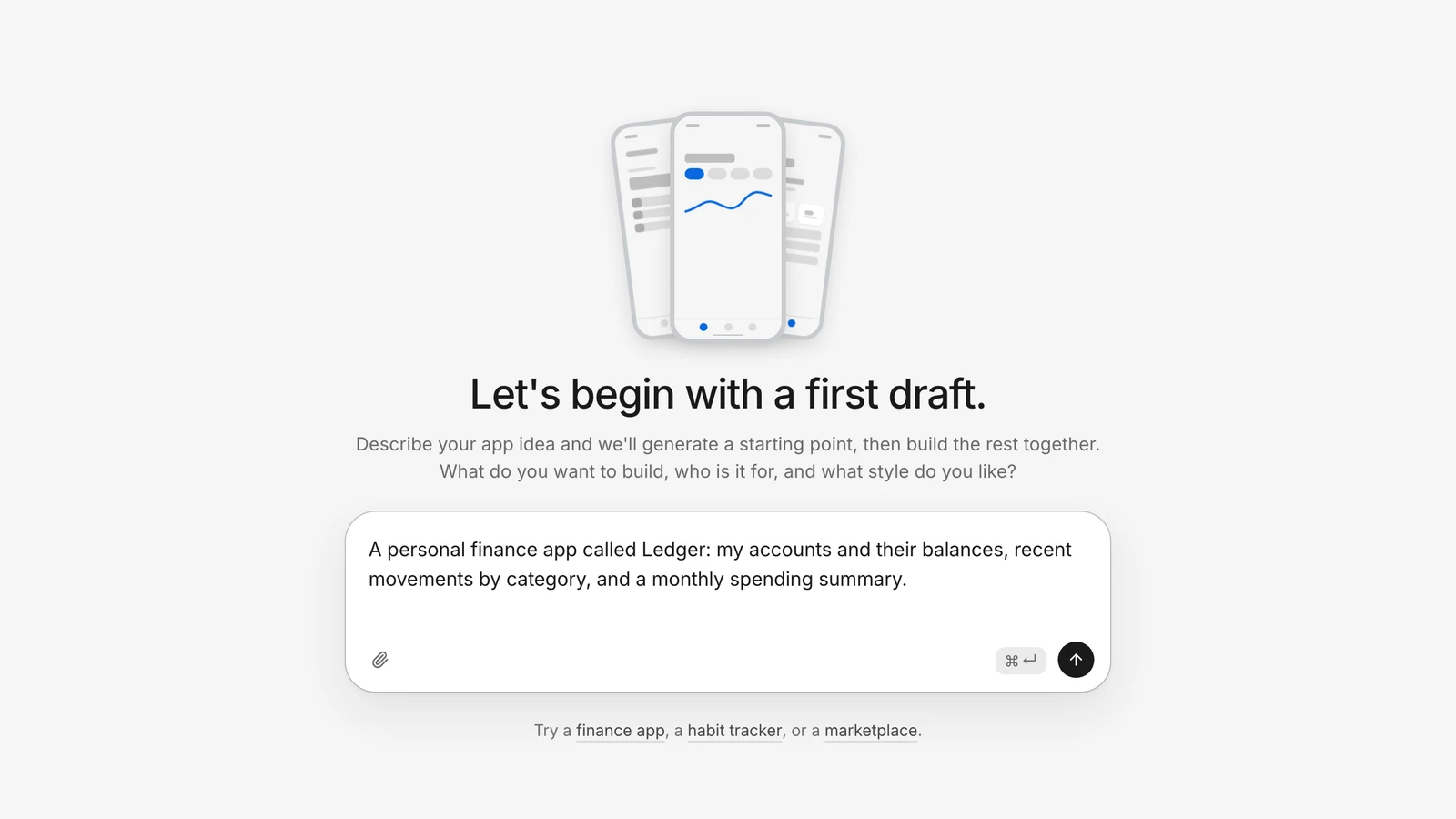
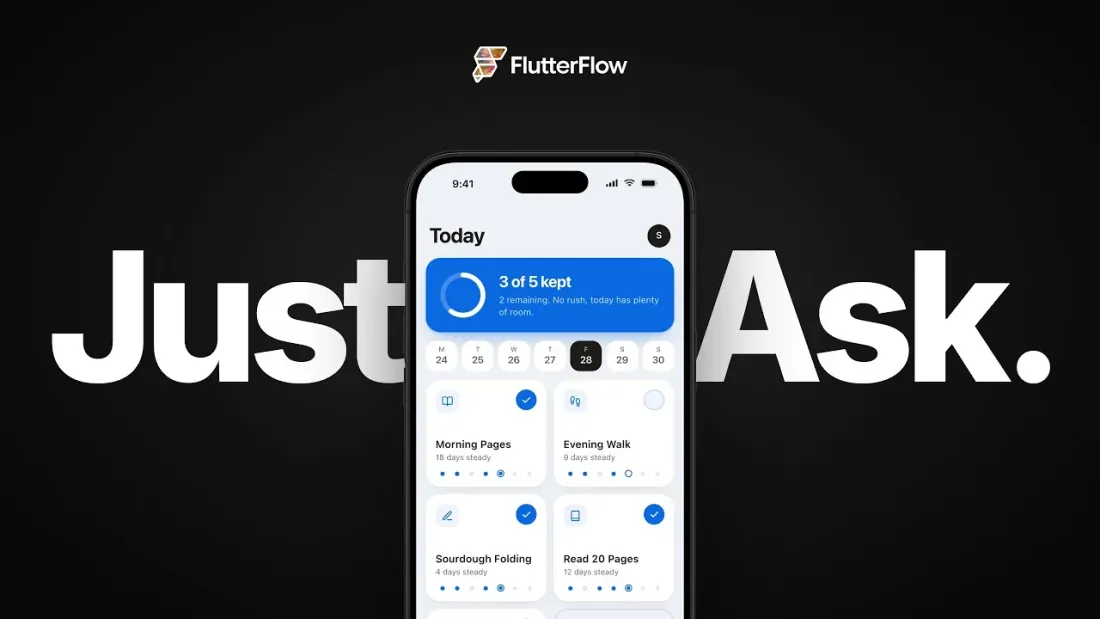
Introducing the New FlutterFlowYouTube (opens in a new tab) 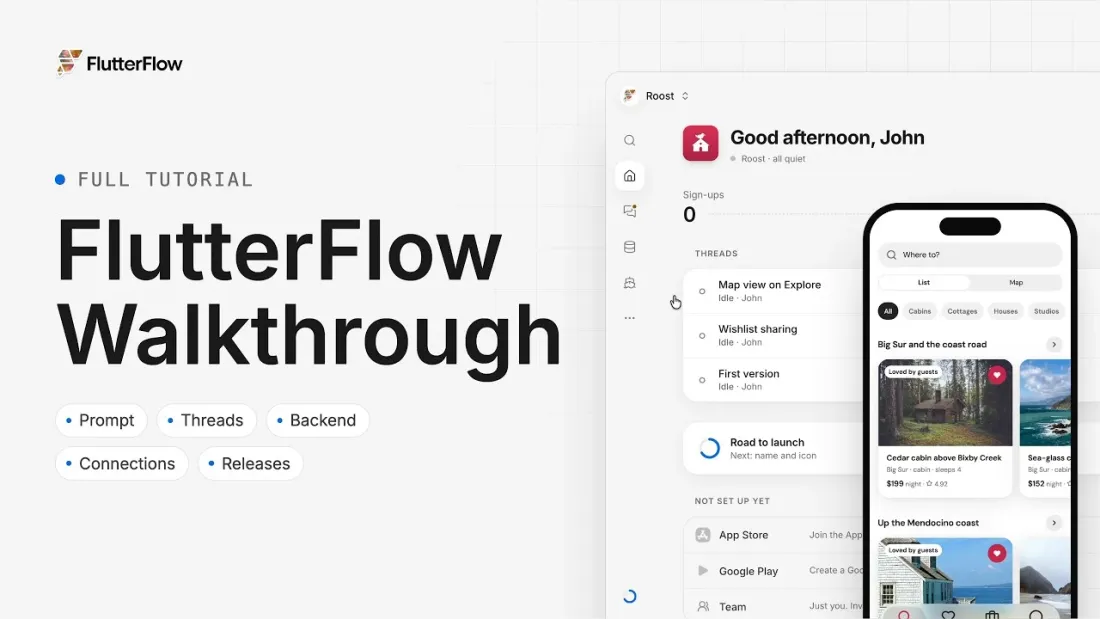
FlutterFlow Full Tutorial: Build and Ship a Mobile AppYouTube (opens in a new tab)
The new FlutterFlow
Describe your app and the agent builds a first version, then change it by asking and send it to the App Store and Google Play. Sign in at build.flutterflow.io with your FlutterFlow account.
The video didn’t load.
The video didn’t load.
Highlights
Your app
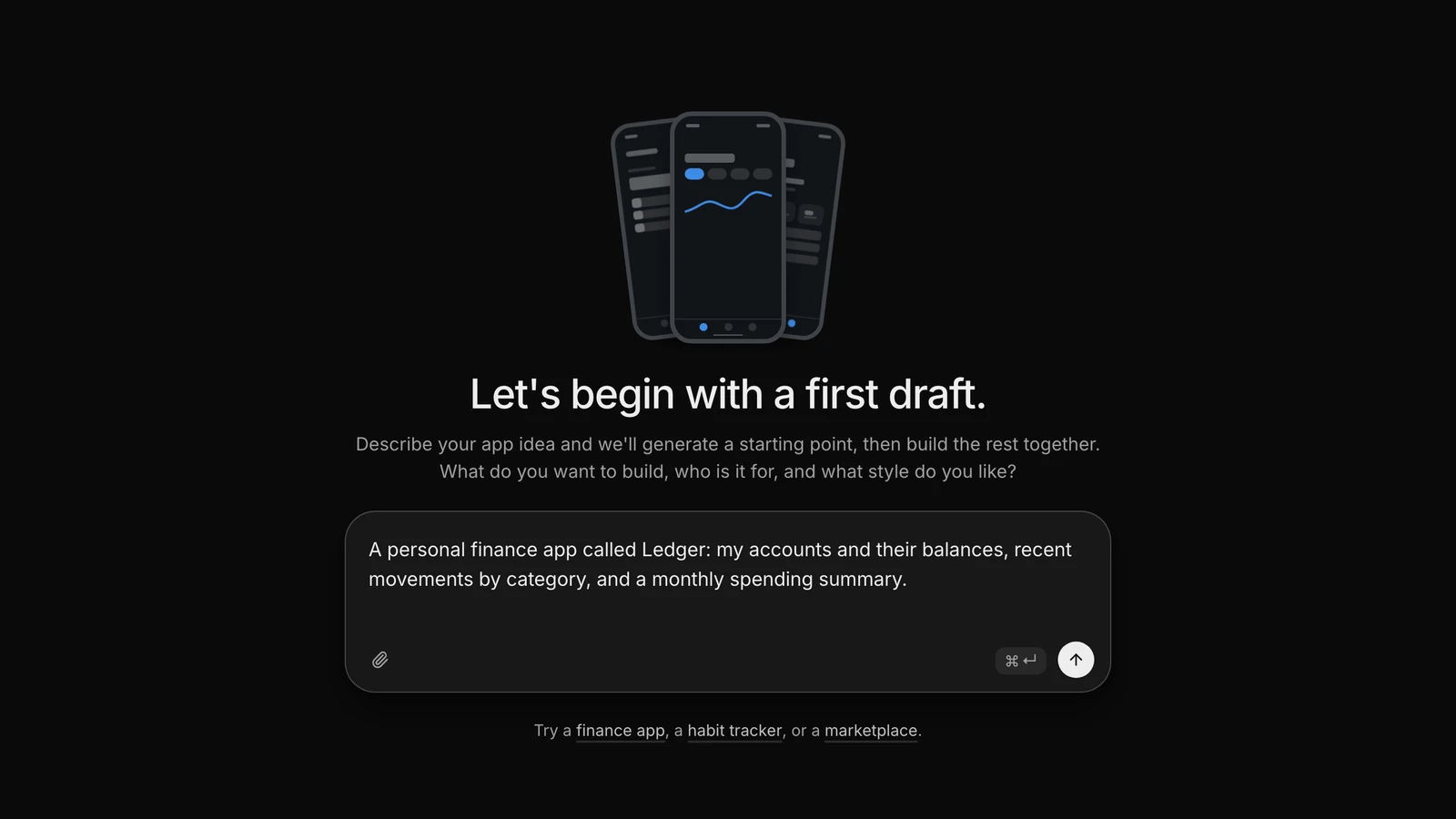
- Describe your app in one box, with reference images if you have them, and watch a sketch of its screens draw as you type.
- Every app gets an icon: build one from a letter or a drawn symbol with a motif, upload your own, or ask the agent.
Threads
- Each change happens in a thread, on its own copy of your app with its own sample data, and the “Push to your app” button brings it in.
- The agent asks when it needs you, with questions, design directions to choose between, and a private field for keys.
Preview
- Your app runs live beside every thread, with tabs for Screens, Data and Changes.
Overview
- A Road to launch checklist walks you from the first version to sign-in, a name and icon, and the stores.
Backend
- Ask the agent for data or sign-in, and manage tables, people, files and secrets in Backend.
Sharing
- A link and QR code open your app on any phone without signing in.
Releases
- Send your app to TestFlight, Google Play testing and review from your own developer accounts.
Connections
- Connect Stripe, OpenAI, Anthropic, Gemini, Resend and more, with your own key kept out of your code.
Billing
- Free, Basic, Pro and Max plans each carry an agent allowance, shown as the percentage left.
Account
- Your projects stay in FlutterFlow Studio, unchanged, and one plan covers both.